How to use the Health check schedules overview
If you have added nodes to the infrastructure, information related to either runnables or nodes can be displayed.
Health checks can be run either for a single runnable, a single node, or for all connected nodes.
If you have  added health check schedules, you can run health checks automatically. This allows you to carry out extensive checks on a regular basis if possible performance influences do not have any negative effects.
If you click a row in the list, more details of the related schedule are shown.
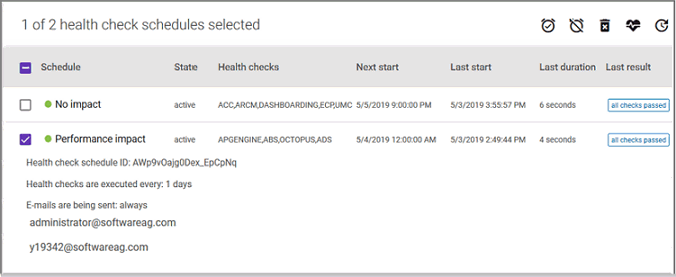
The overview provides the following information:
Schedule
Lists added schedules that perform health checks on selected runnables. The color of the dot indicates the status of a schedule.
State
The color of the dot indicates the status of a schedule. If active, the dot is green. Active schedules are executed as defined. Gray dots indicate deactivated schedules.
Health checks
Lists the runnables for which health checks are executed.
Next start
Shows the date and time when the scheduled health checks will start the next time.
Last start
Shows the date and time of the last execution.
Last duration
Lists how long it took to perform all health checks the last time the schedule was executed.
Last result
Shows the result of the last execution. If you click this result, the related health check overview is displayed.
Available actions
These icons are available if you have selected at least one schedule.


If you move the mouse pointer to a row, the following action buttons are faded in:
